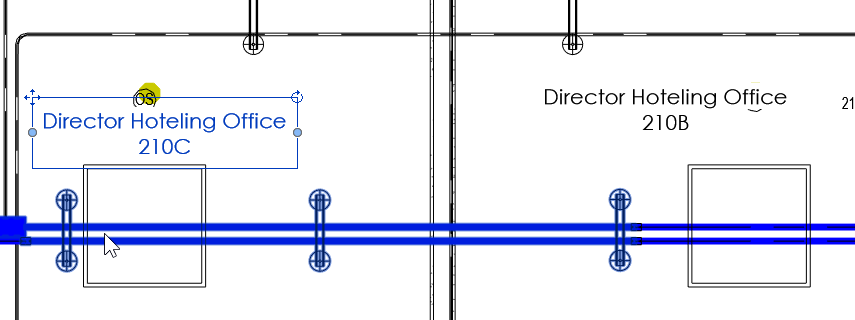
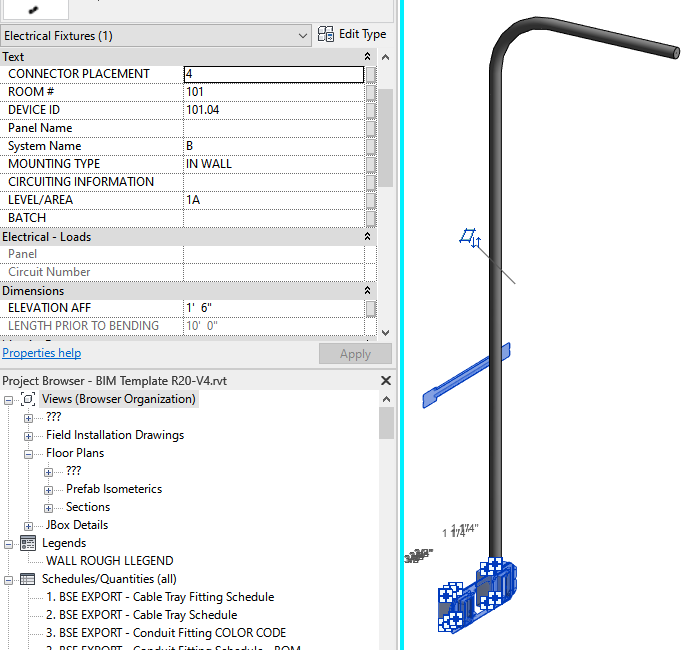
Select Conduits, Conduit Fittings, and an Electrical Fixture.
The graph will take these parameters from the Electrical Fixture and apply the values to the selected Conduits & Conduit Fittings
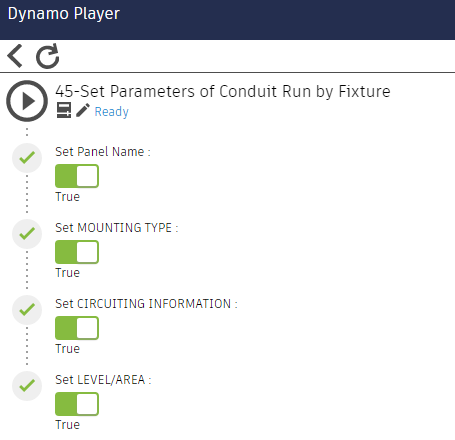
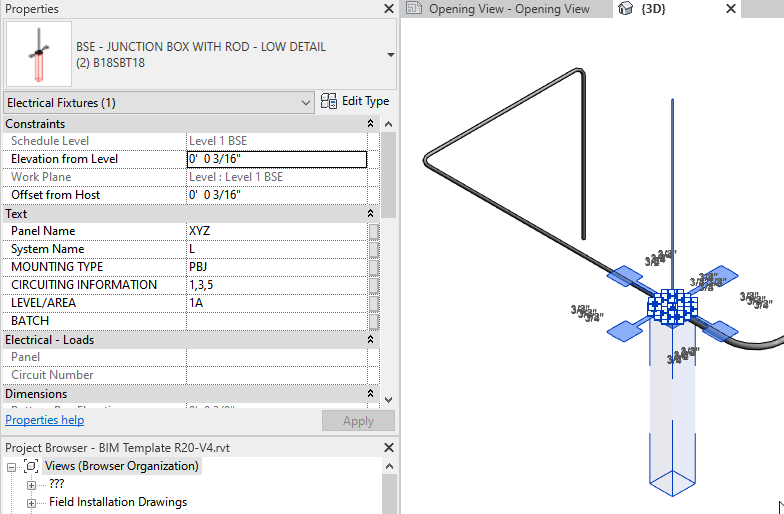
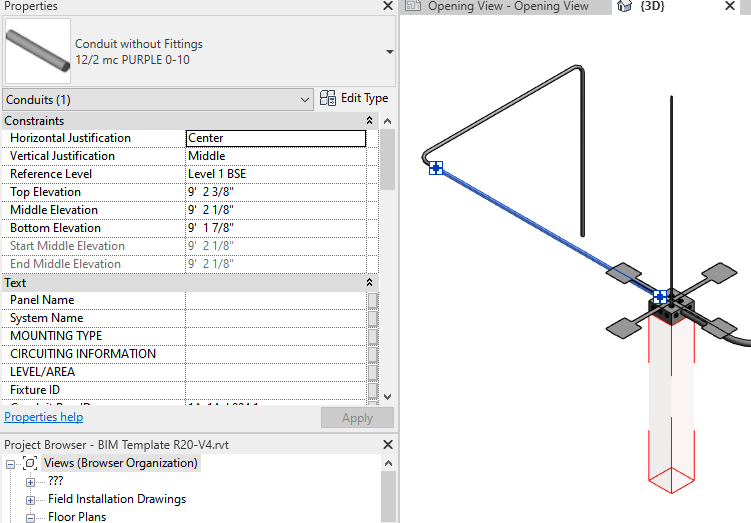
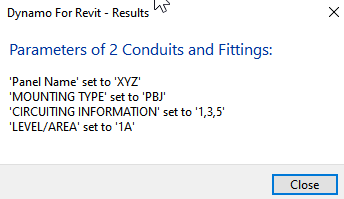
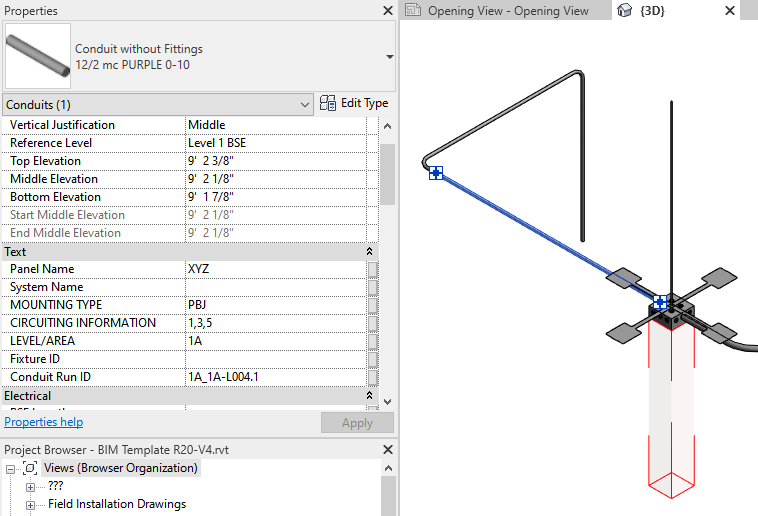
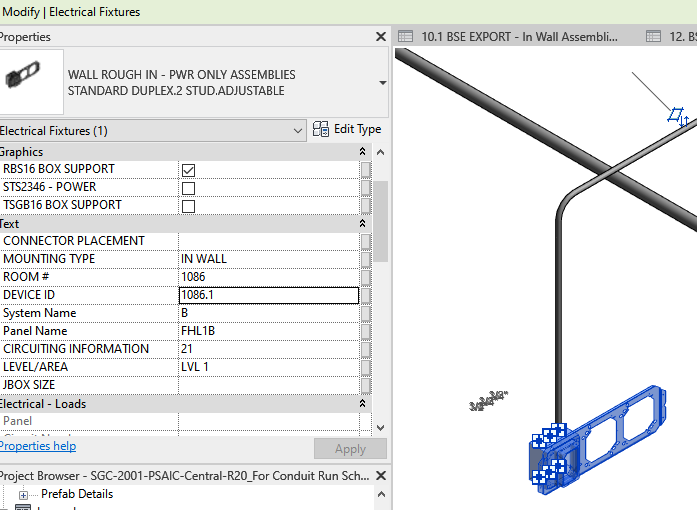
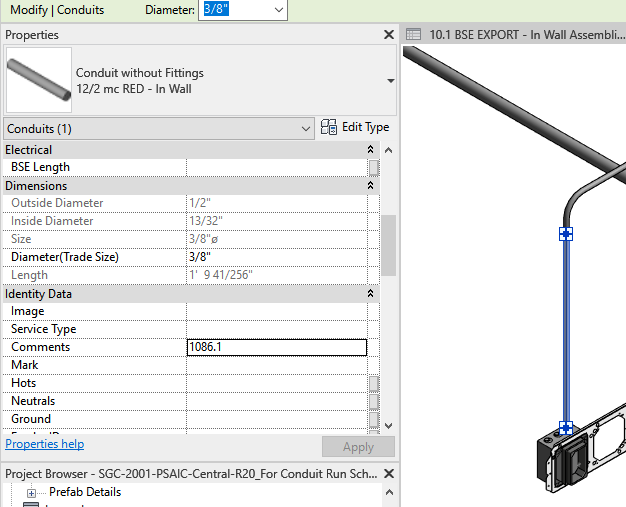
Select Conduits, Conduit Fittings, and an Electrical Fixture.
The graph will take these parameters from the Electrical Fixture and apply the values to the selected Conduits & Conduit Fittings
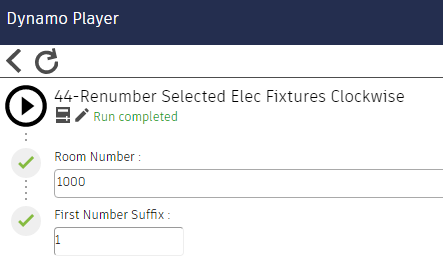
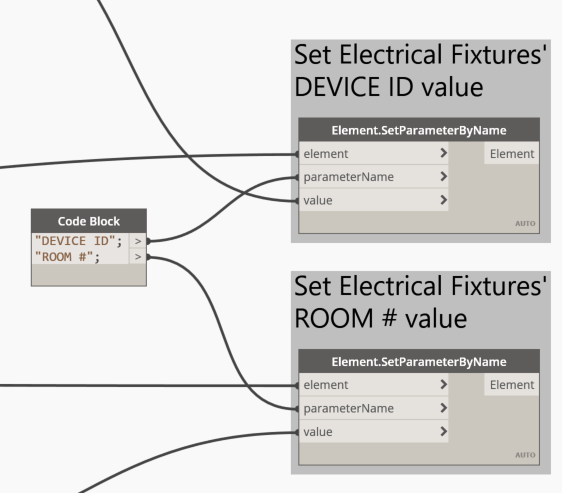
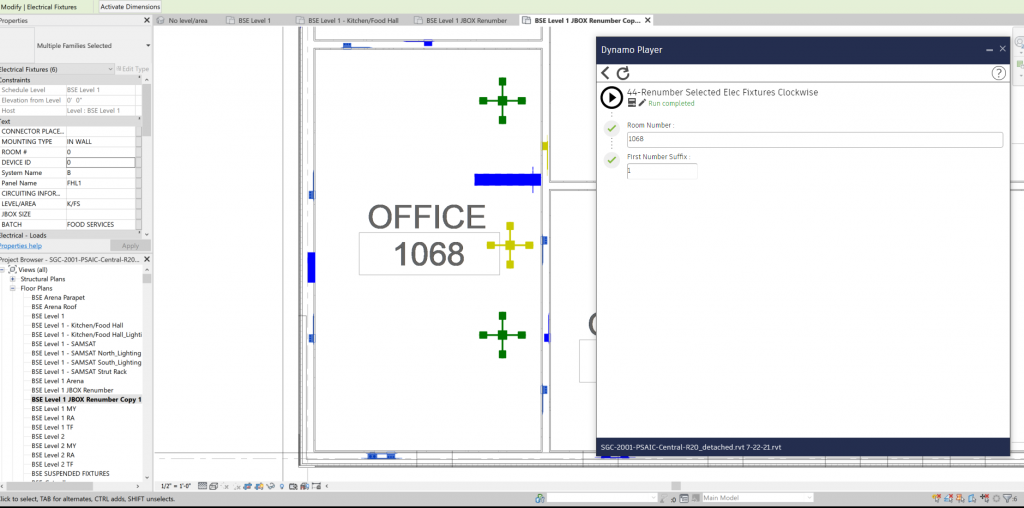
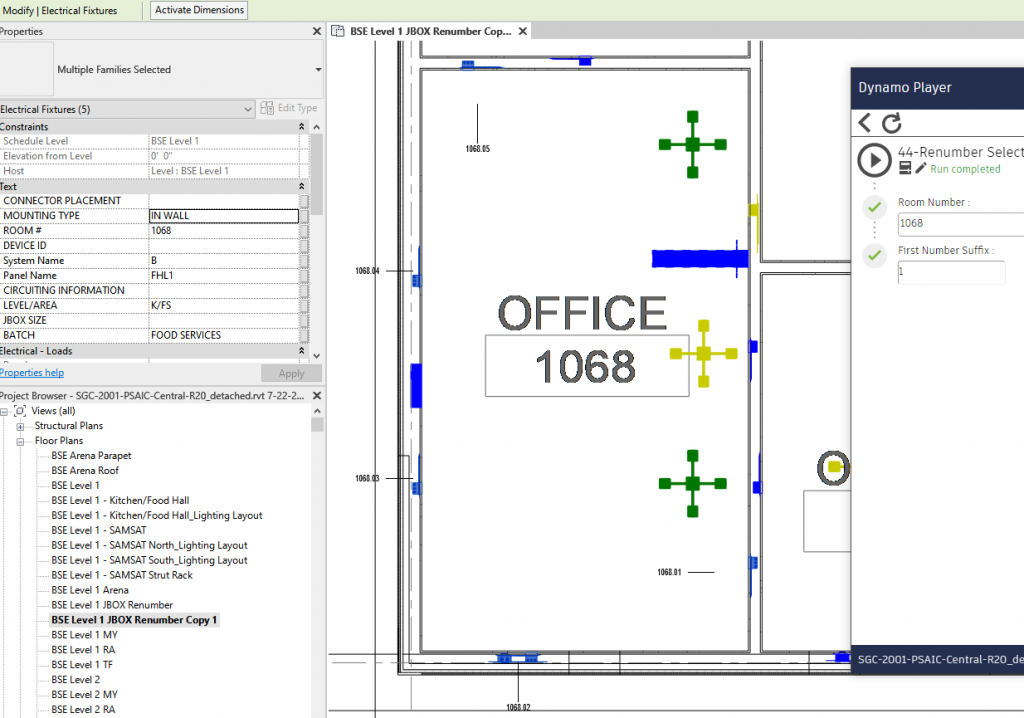
Selected Electrical Fixtures and their parameters of “DEVICE ID” and “ROOM #” will be set as the Room Number input.
“DEVICE ID” will be counted up clockwise starting with First Number Suffix input.
Selected elements will be Tagged with the default Tag for Electrical Fixtures
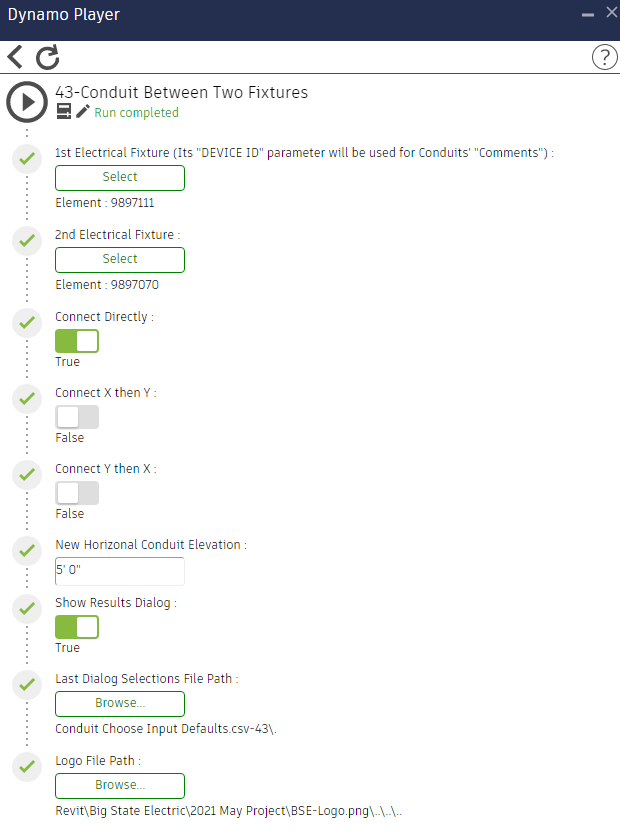
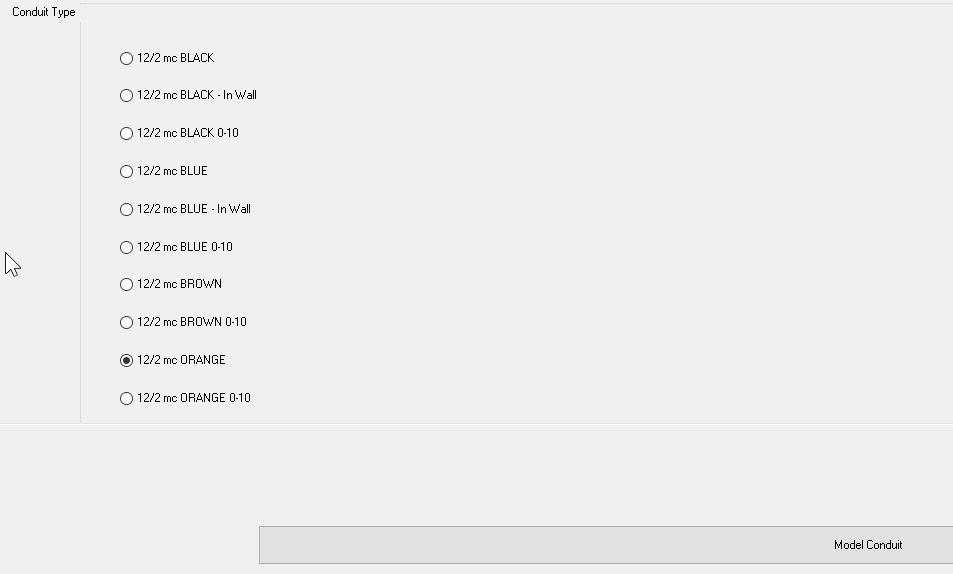
Model Conduit between two Electrical Fixtures.
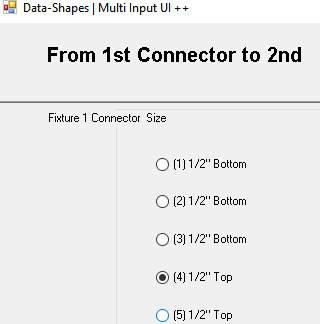
In the Dynamo Player inputs, select 1st & 2nd Fixture, and how you want them connected. Connect directly goes straight from the 1st connector to the 2nd, the X/Y options are for going around corners.
Last Dialog Selections file is a small CSV that saves the previous dialog inputs.
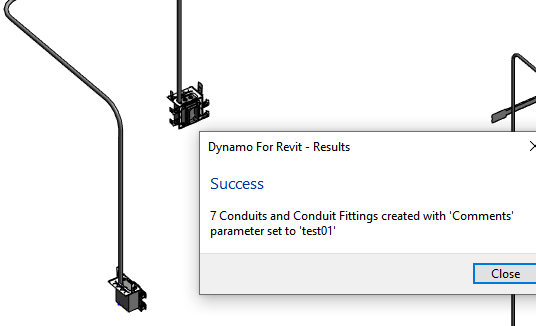
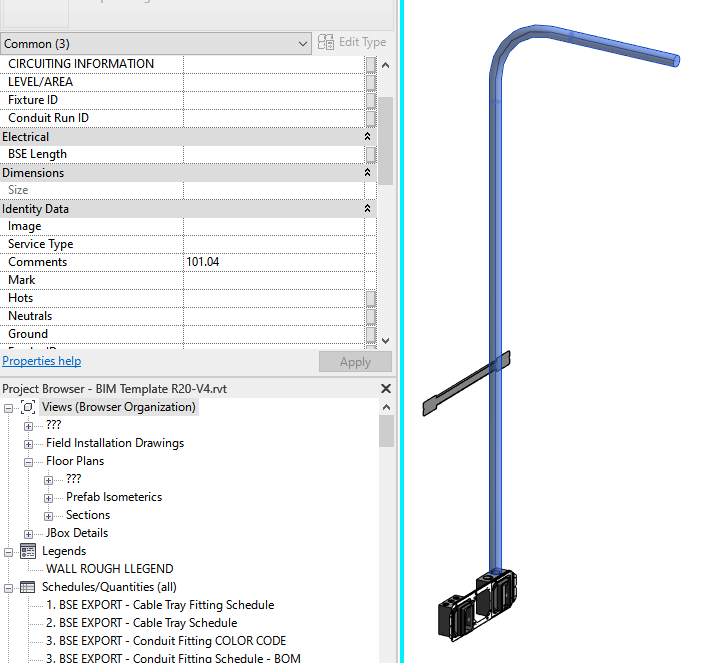
“Comments” parameters for the Conduit Run will be set from the “DEVICE ID” from the first fixture selected.
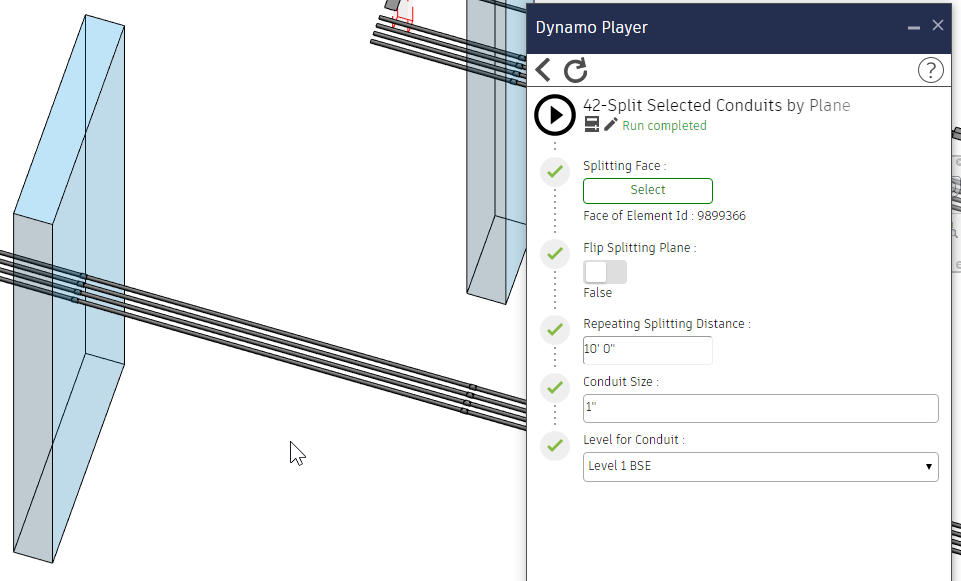
Split Selected Conduits by Plane
“Conduit Cutter” component may be placed to make a cutting plane
Enter inputs in the Dynamo Player
Select a set of Conduits and run Player
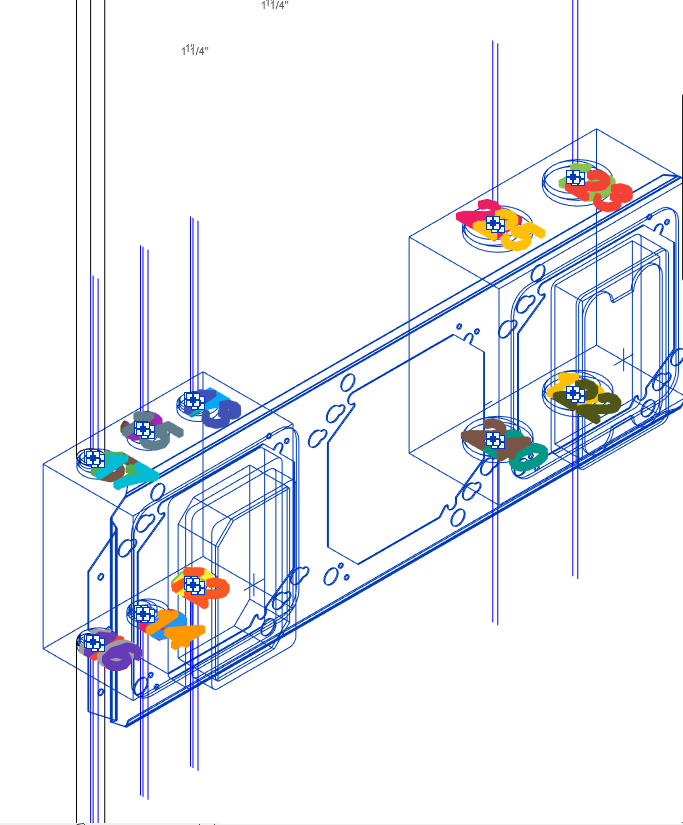
A diagnostic tool when creating or editing Revit content that has Connectors. It will identify Connectors on a selected element by putting in a little Family with a number starting with 0.
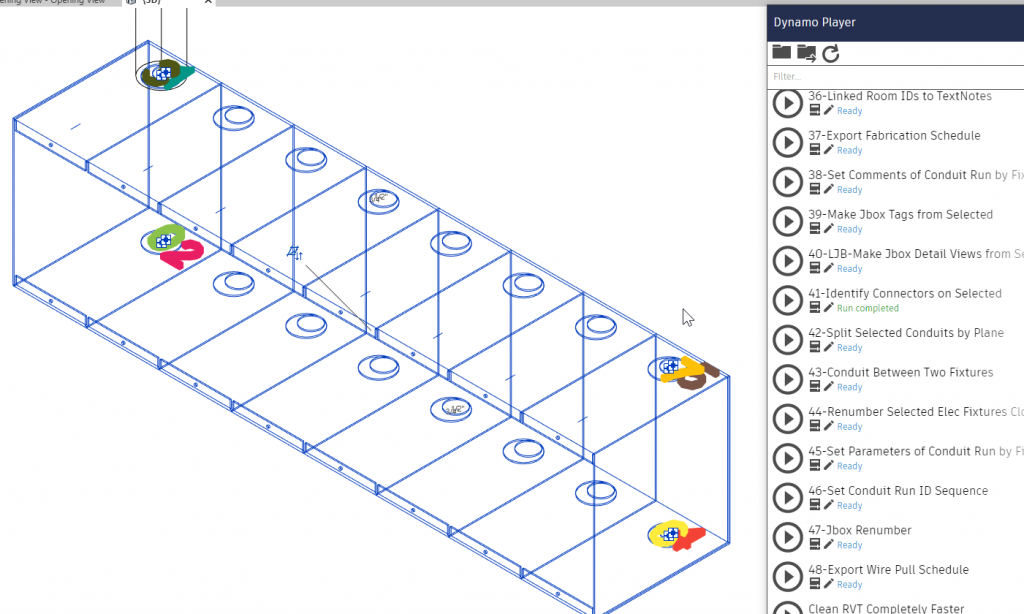
Run graph in Dynamo to see the direction of the Connectors on the screen
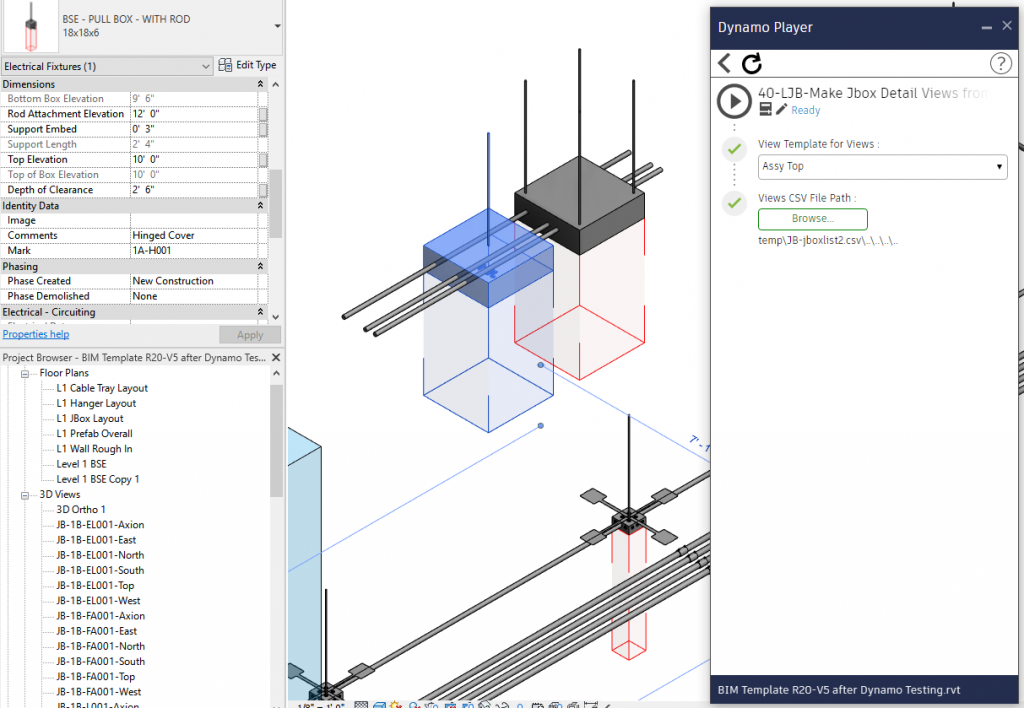
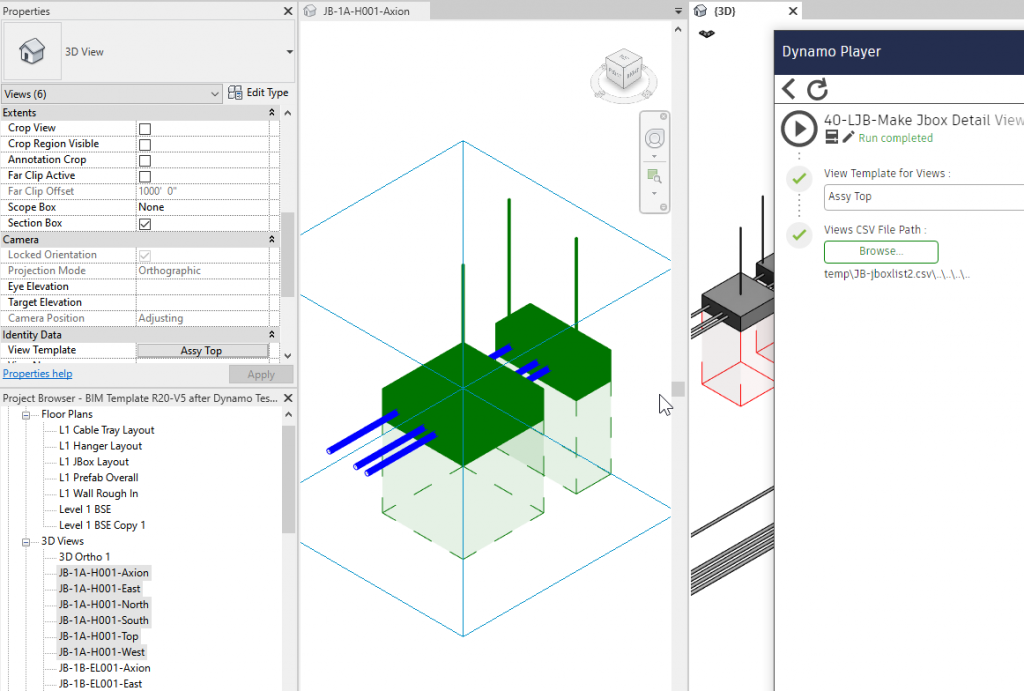
Make the 6 large Jbox Detail Views from selected elements
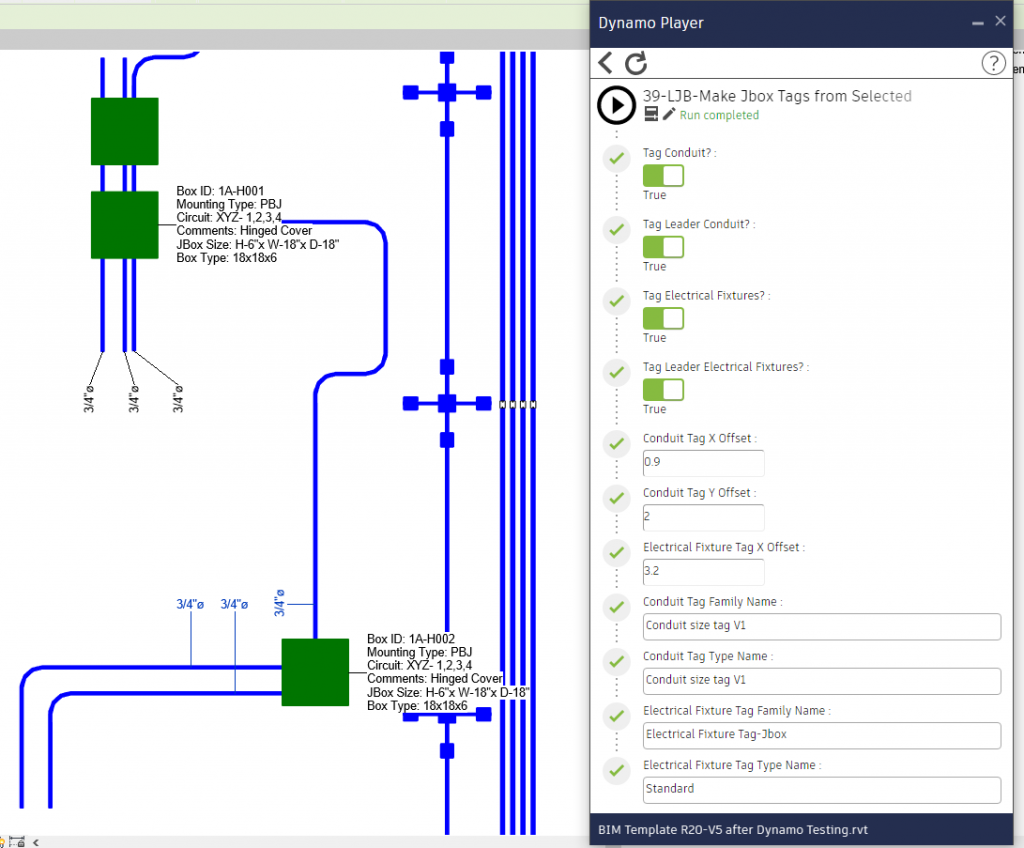
Make Tags from selected elements of the Categories Conduit and Electrical Fixtures
Select elements of categories “Conduits”, “Conduit Fittings”,
and one of “Electrical Fixtures”
Comments parameter of the Conduit Run (that is all “Conduits” & “Conduit Fittings”) will be set from the value of the Electrical Fixture’s DEVICE ID parameter.
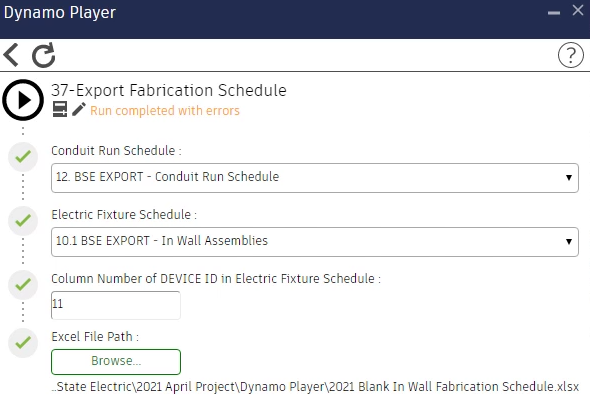
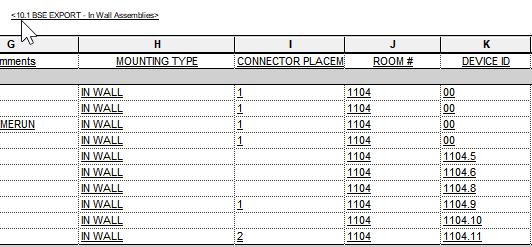
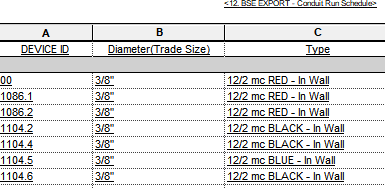
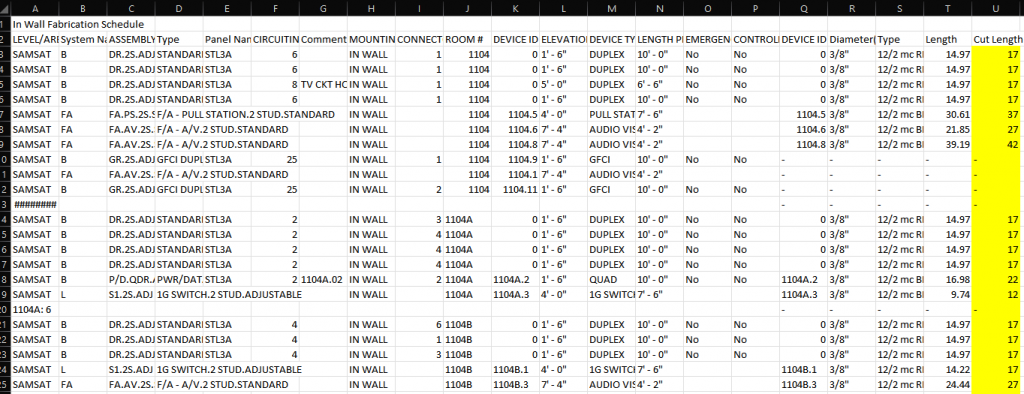
Combines the data from two Schedules and writes an Excel spreadsheet
Extracts Room Name and Number from Linked Room IDs and creates TextNotes
Select Link in the Player inputs and Level in the dialog.